API Test Listing
The API Test module lets you view and manage the API test collections available on the AGIS Catalyst platform.
You can open API Test by going to the Design panel on the right-hand side panel and selecting the API Test button.
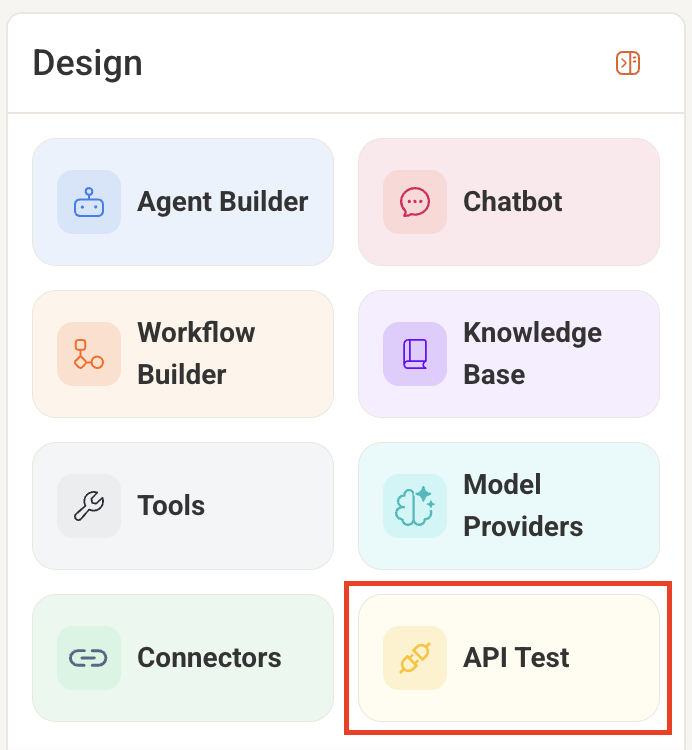
View the API Test Page
Once you select API Test, the panel shows the API Test page. At the top of the page, there are four tabs:
- Collections — the list of API test collections (opened by default)
- Environments — the environments available for API testing, with a badge showing the total number
- Secrets — the secrets available for API testing, with a badge showing the total number
- External sources — the external sources connected to API testing
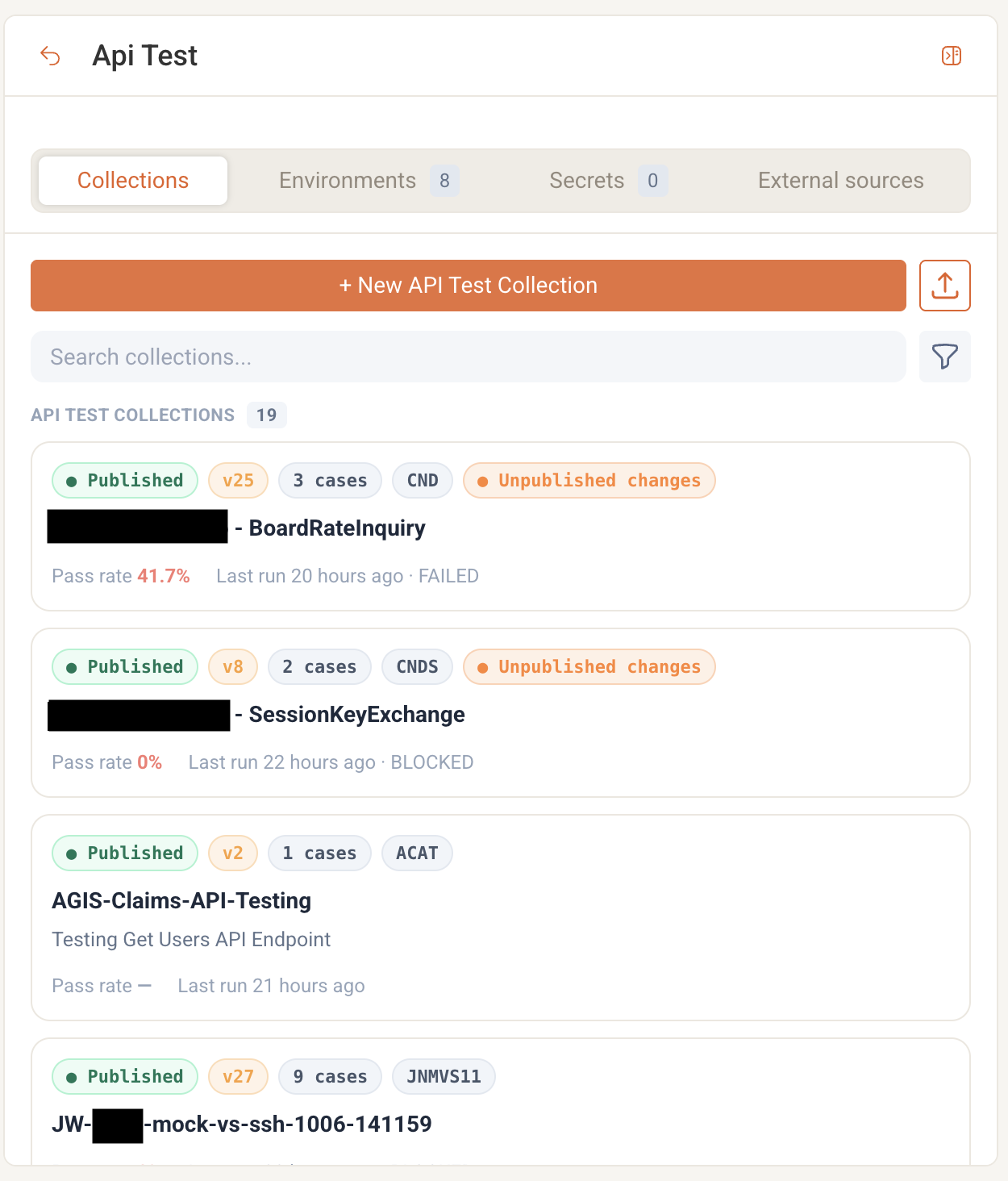
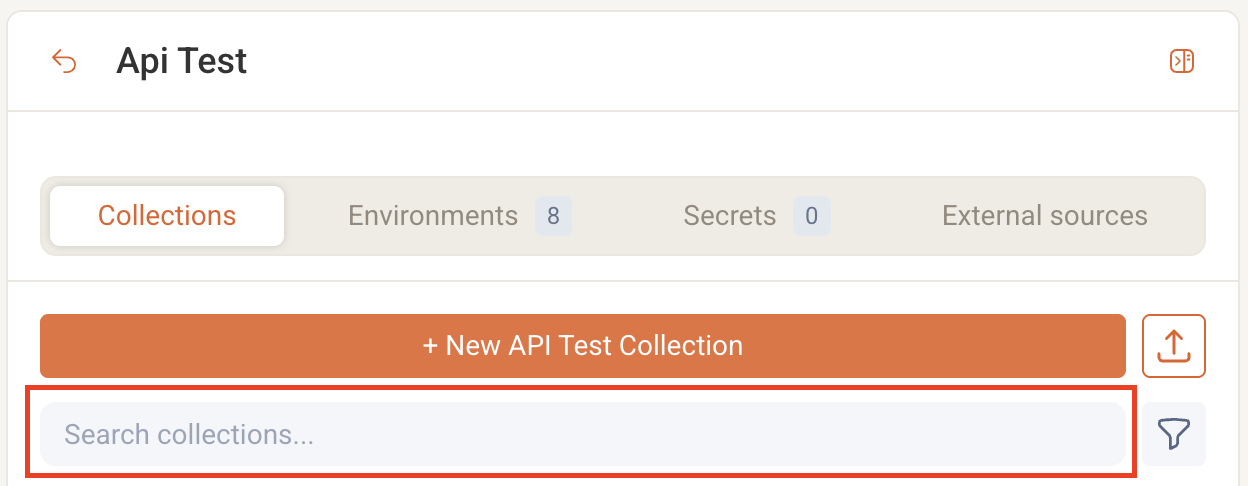
Below the tabs, the Collections tab provides the following controls:
- + New API Test Collection button — create a new API test collection
- Import Collection button — import an existing collection from a file
- Search bar — find a specific collection by name
- Filter button — filter the collection list
View the Collection List
Under the API TEST COLLECTIONS heading, you can see all the collections currently available, along with a badge showing the total number of collections.
Each collection card displays:
- Status badge — the collection's publish status, such as
Published - Version badge — the collection's version, such as
v25 - Cases badge — the number of test cases in the collection
- Tag badge — a short label for the collection, such as
CND - Unpublished changes badge — shown when the collection has changes that have not been published yet
- Name — the collection's name
- Description — a description of the collection, if one was provided
- Pass rate — the percentage of test cases that passed in the last run. It shows
—if there is no pass rate yet - Last run — when the collection was last run, and the result of that run (for example
FAILEDorBLOCKED)
Create a New Collection
To create a new collection, select the + New API Test Collection button.
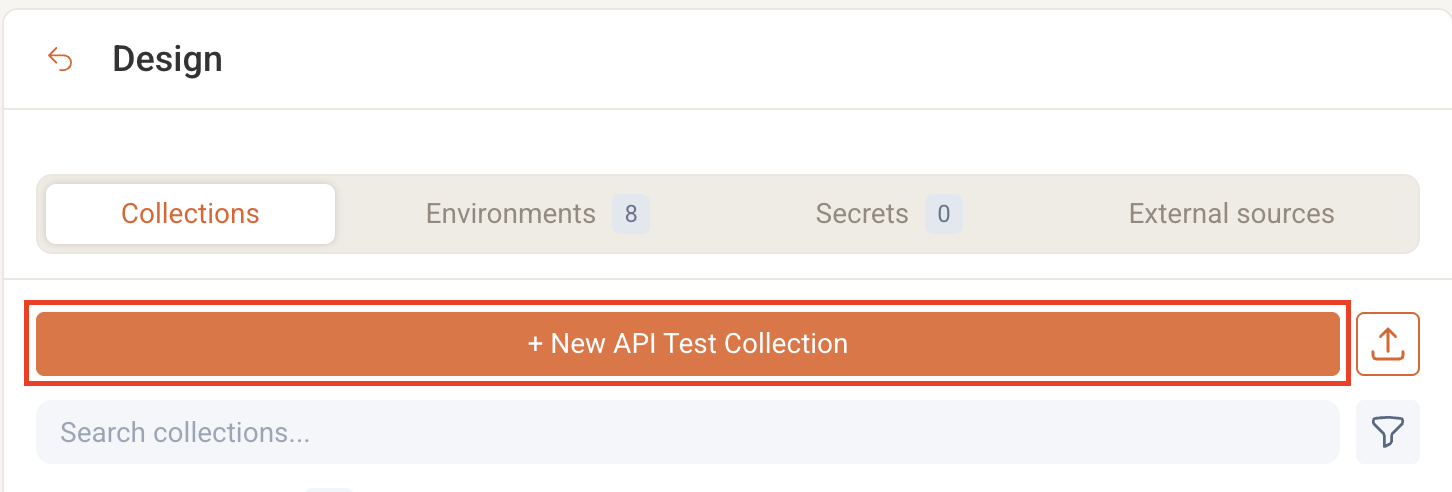
For the full creation flow, see Create a New Collection.
Import a Collection
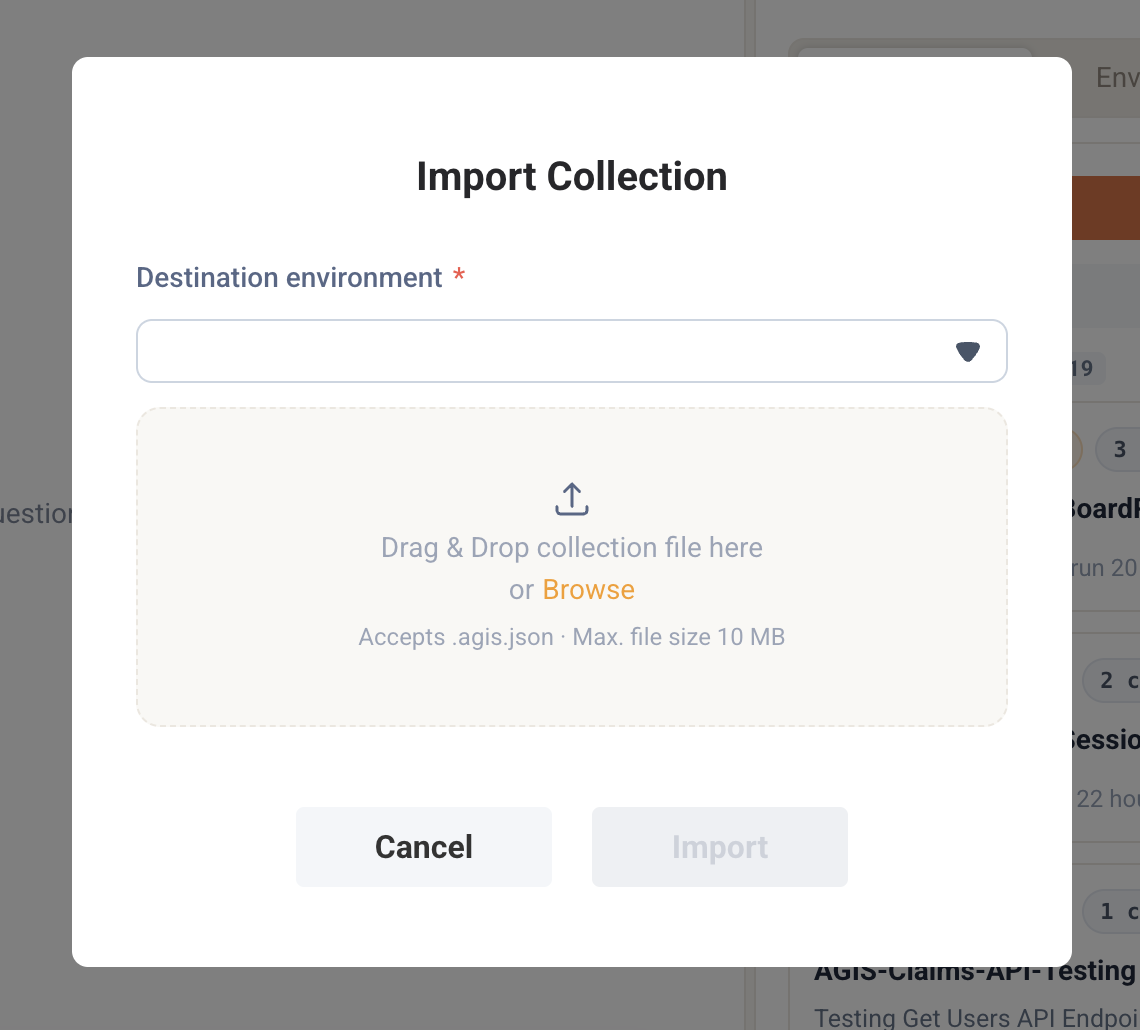
To import an existing collection, select the Import Collection button next to the + New API Test Collection button.
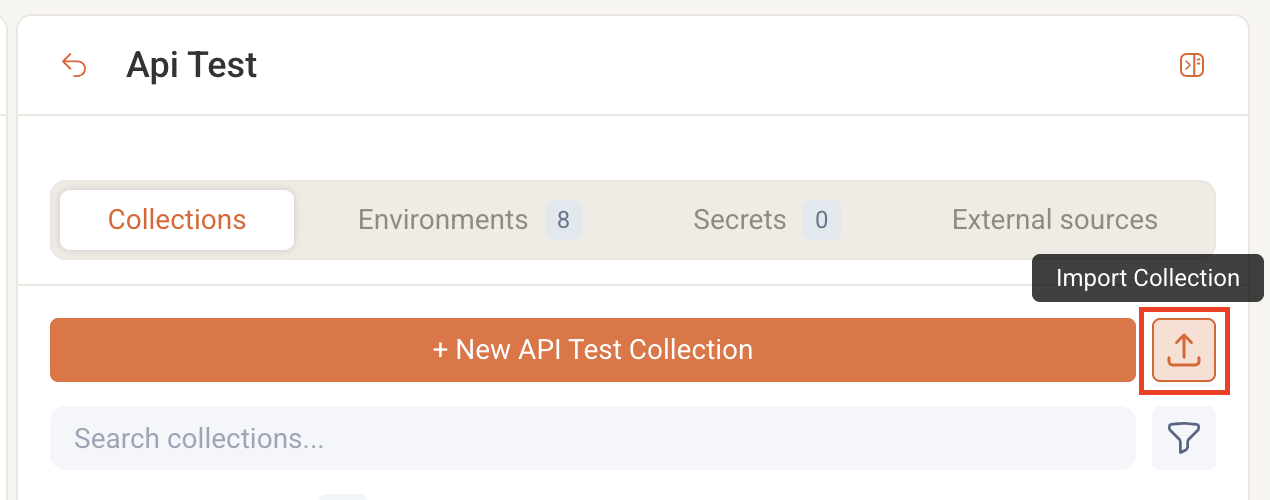
The Import Collection dialog will appear.
In the dialog:
- Select the Destination environment (required).
- Drag and drop a collection file into the upload area, or select Browse to choose a file. Only
.agis.jsonfiles are accepted, with a maximum file size of 10 MB. - Select Import to import the collection, or Cancel to close the dialog.
Search Collections
Use the Search collections... bar to find a specific collection by name.
Filter Collections
Select the Filter button next to the search bar to open the filter panel.
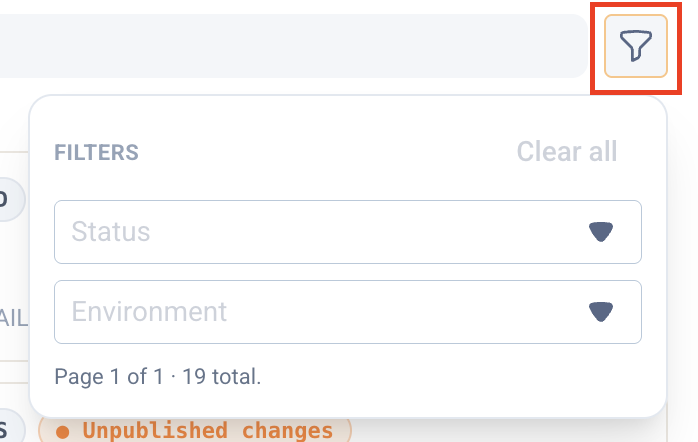
The filter panel provides the following options:
- Status — filter collections by their status
- Environment — filter collections by their environment
The panel also shows the current page and the total number of collections. To remove all applied filters, select Clear all.
